
| What to do | Visualization |
|---|---|
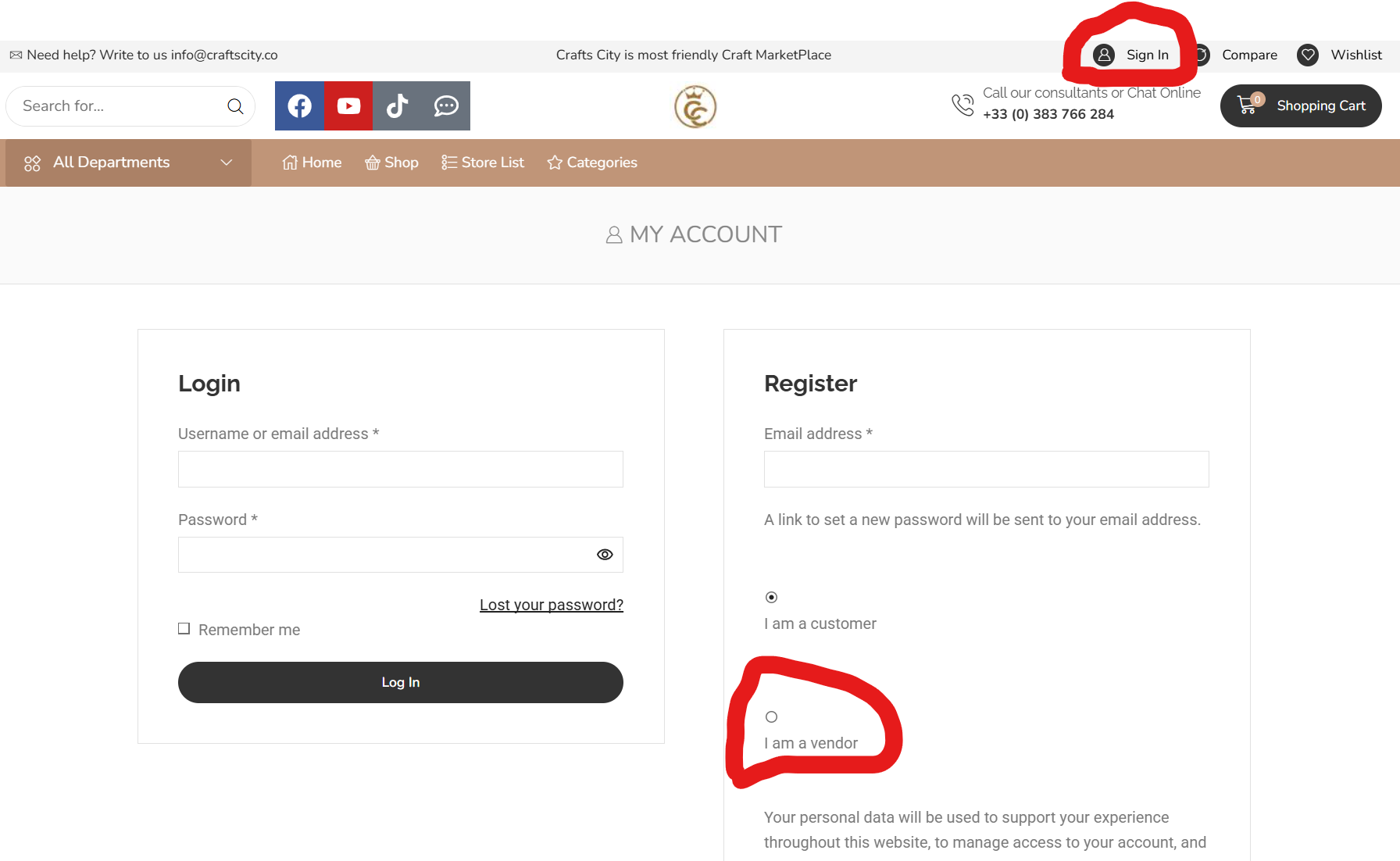
| To register as a Vendor, please click on Sign in button, as is shown in the picture. Pictures are clickable. New page will open.
Click on I am Vendor. New options will appear. |
 |
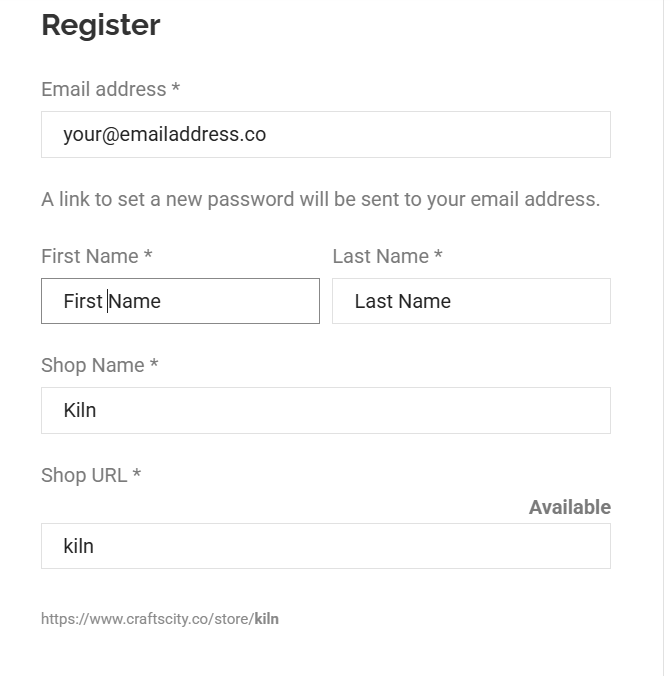
| Type Your eMail address, You want to register.
Type Your First name and last name. Type Your Shop name. Check SHOP URL field, is it available or probably You wana other name. |
 |
| Fill street address.
Type Town or City name. Type in Post Code or ZIP. Select Your Country from a list. Type State if aproriate. |
 |
| Fill Company name and or Company ID/EUID Nr if You have.
Fill VAT / TAX ID if needed. Fill name of Bank Fill Account / IBAN Nr Type in Phone Nr as it is required field. Check check box that You have read and agree to the Terms and Conditions of Crafts City. |
 |
| Clisk on Register button. | 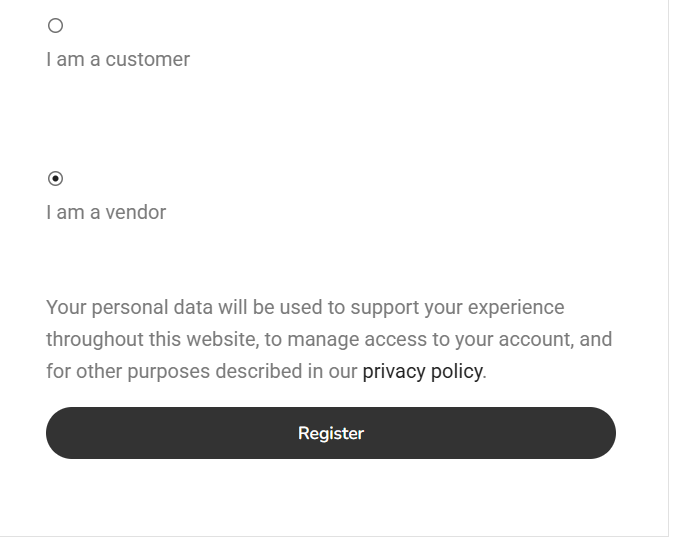 |
| Congratulations. You have now registered on our website. You will receive a notification and a request to confirm your email. | 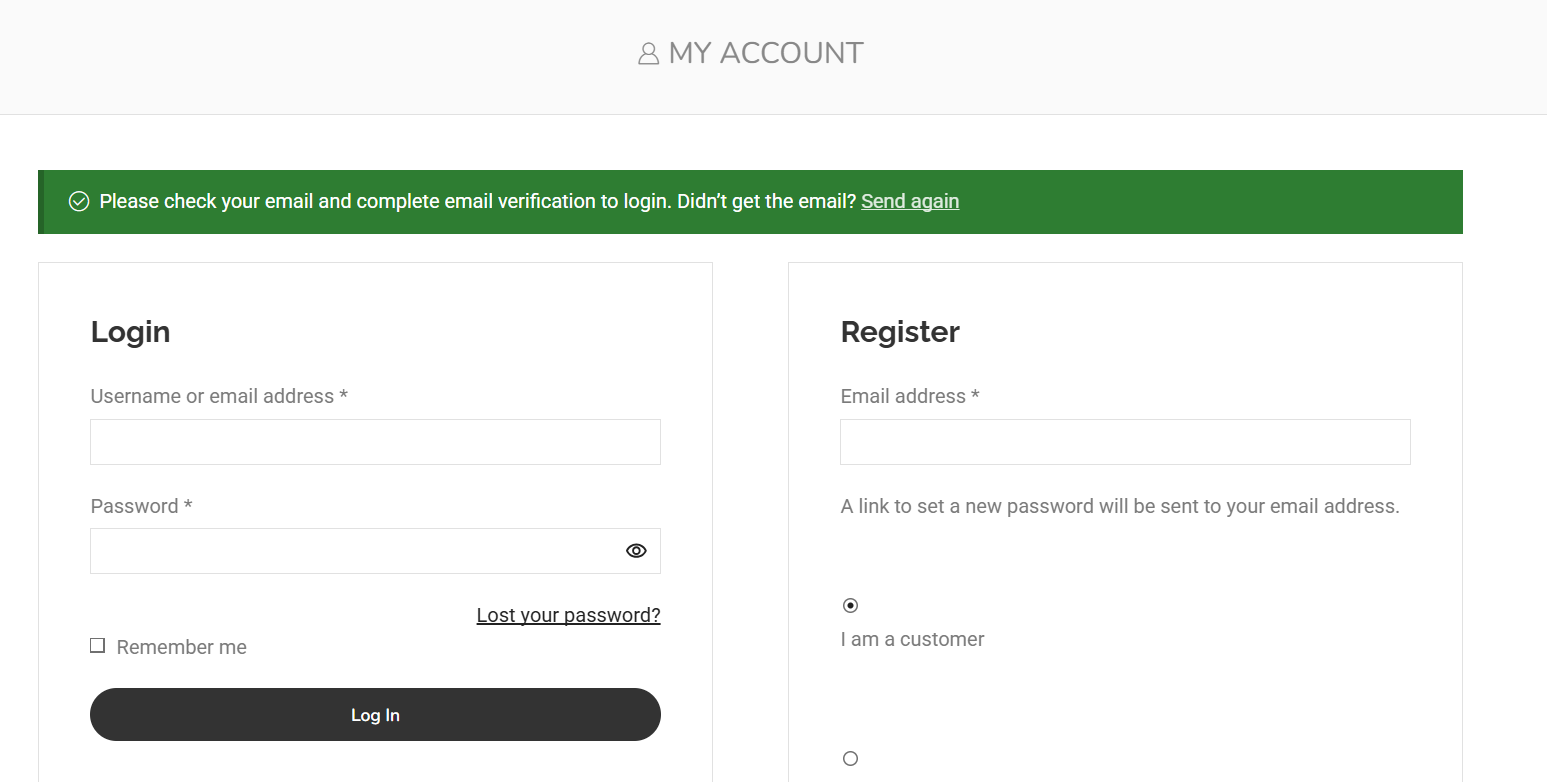 |
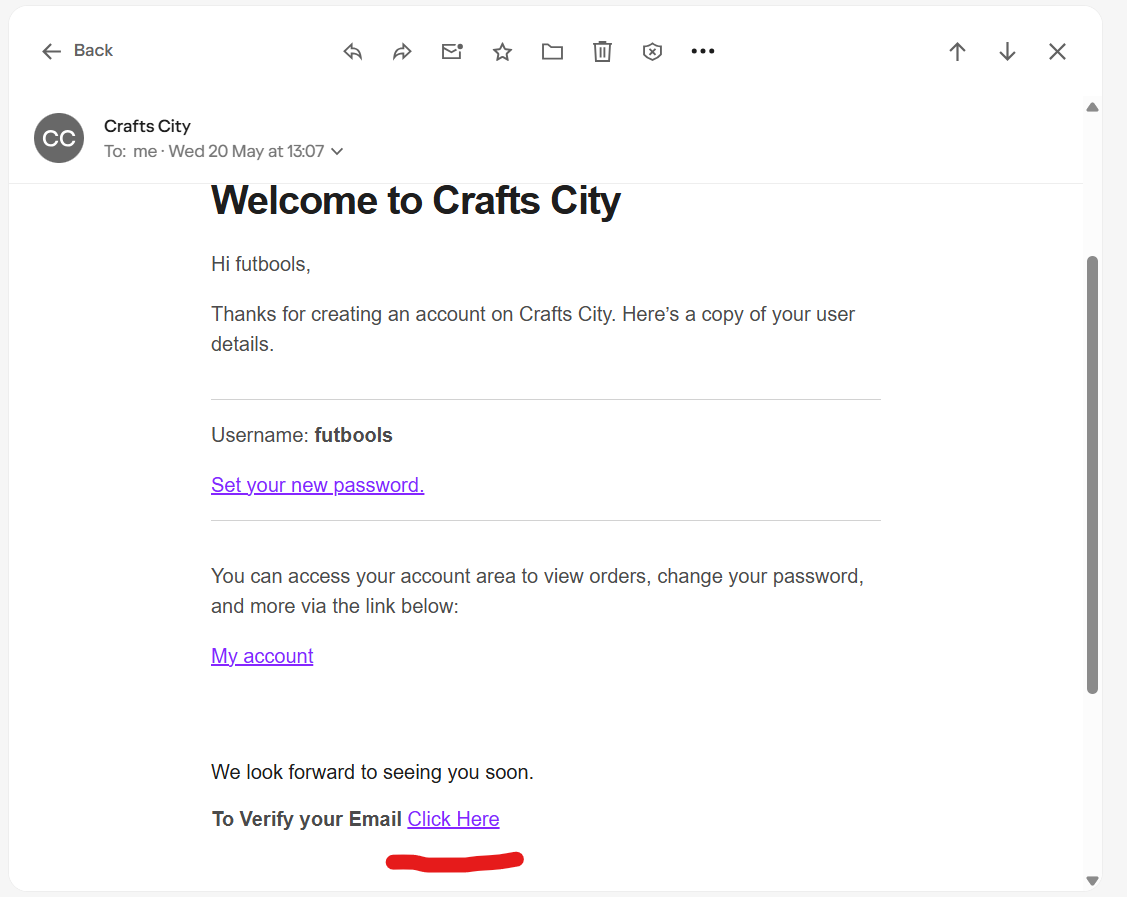
| Go to your email and open the email you received from us. If it has not arrived, please check your SPAM folder. At the bottom of the email, there will be a line underlined in red. To verify your email CLICK HERE. Click it. |
 |
| When you click, a new window will open with the Store Creation wizard. You can click Not right now and create the store later or Let’s go and do it now. | 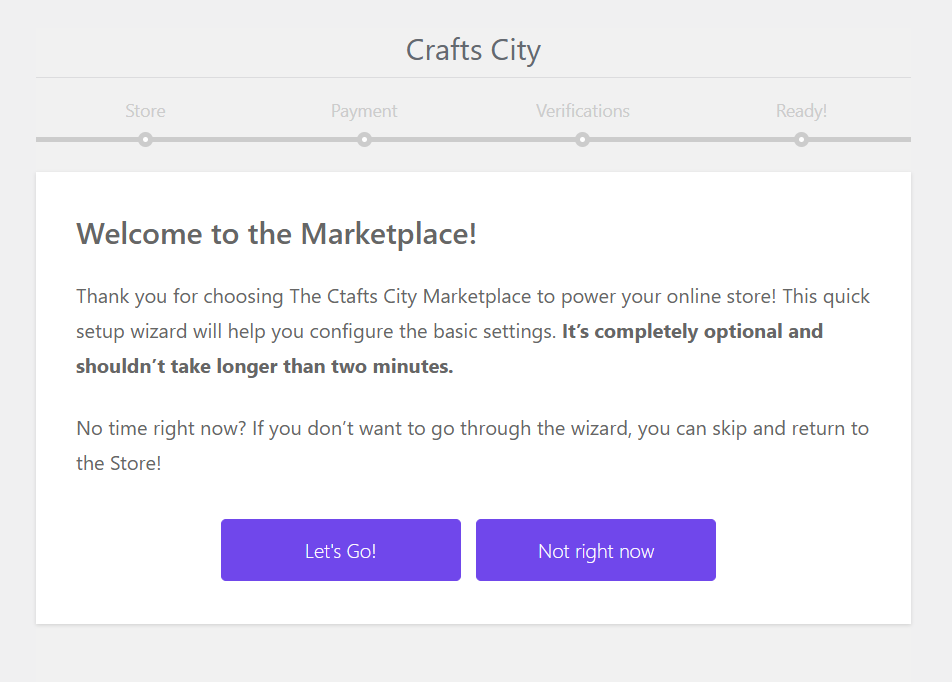 |
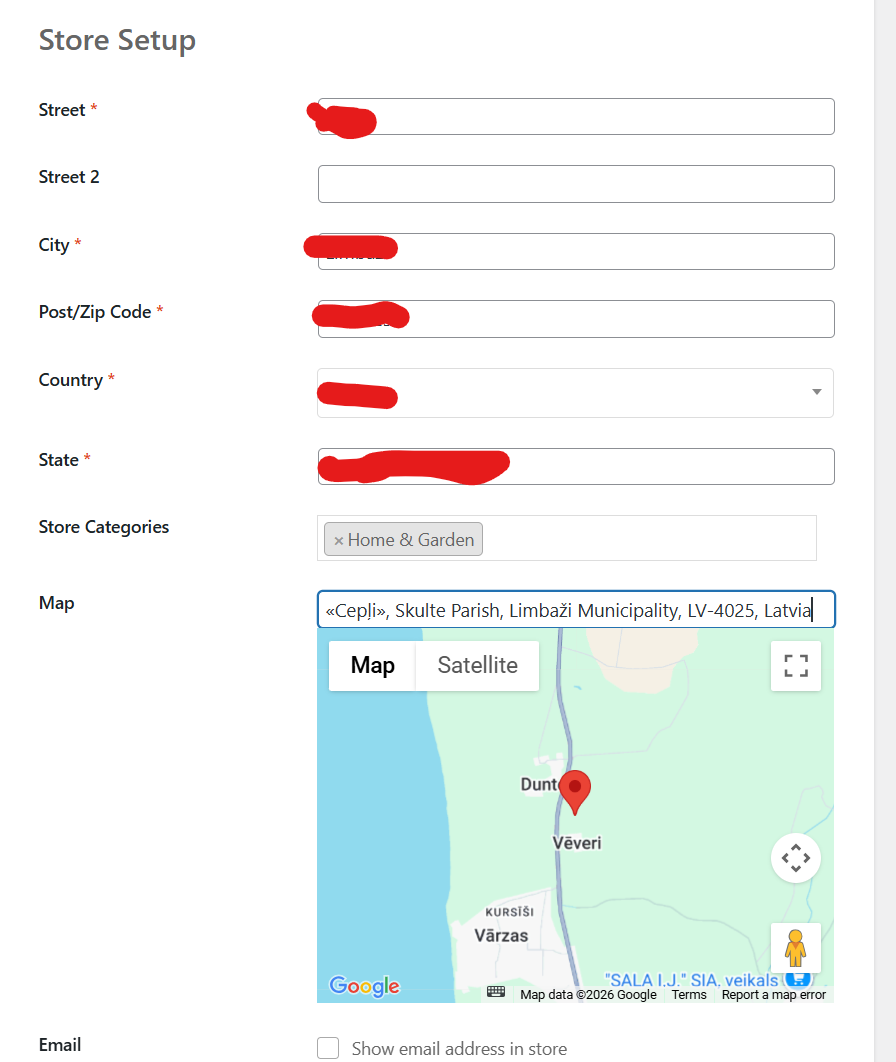
| Fill Your business street address
Fill city name. Fill Post / ZIP Code Select a country Type Your state. Select Your store category from the list. If there is no category You need, please let as know in Vendor support forum HERE. Once we will receive Your request – category will be created and assigned to your shop. Type in Your address in map, so it will show proper business location. |
 |
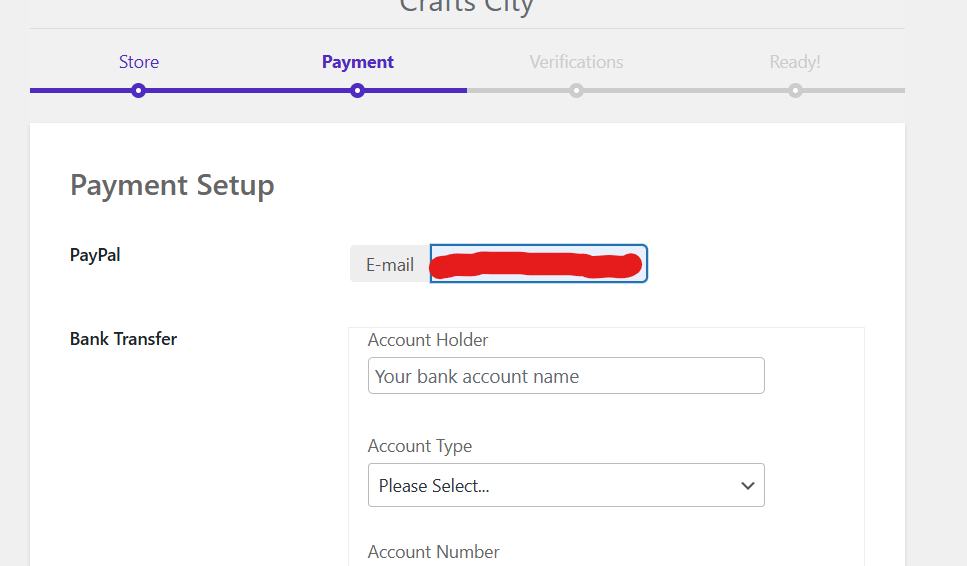
| Next step is Payment setup.
To receive money by paypal fill paypal email address. To receive money by bank transfer fill every field. |
 |
| Once every field is finished click on continue button. | 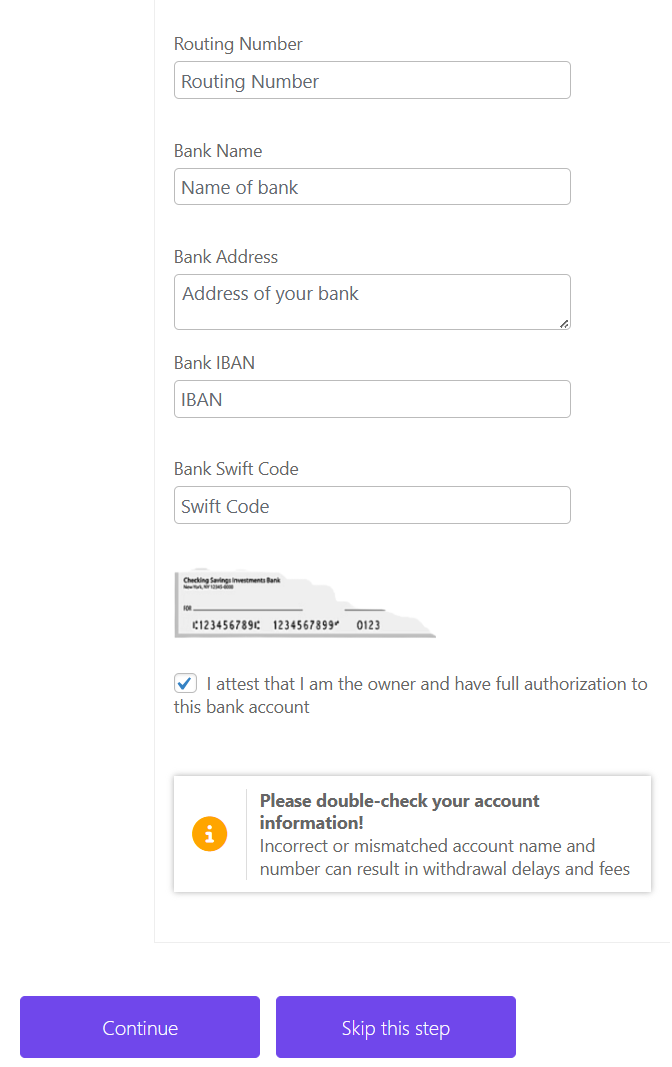 |
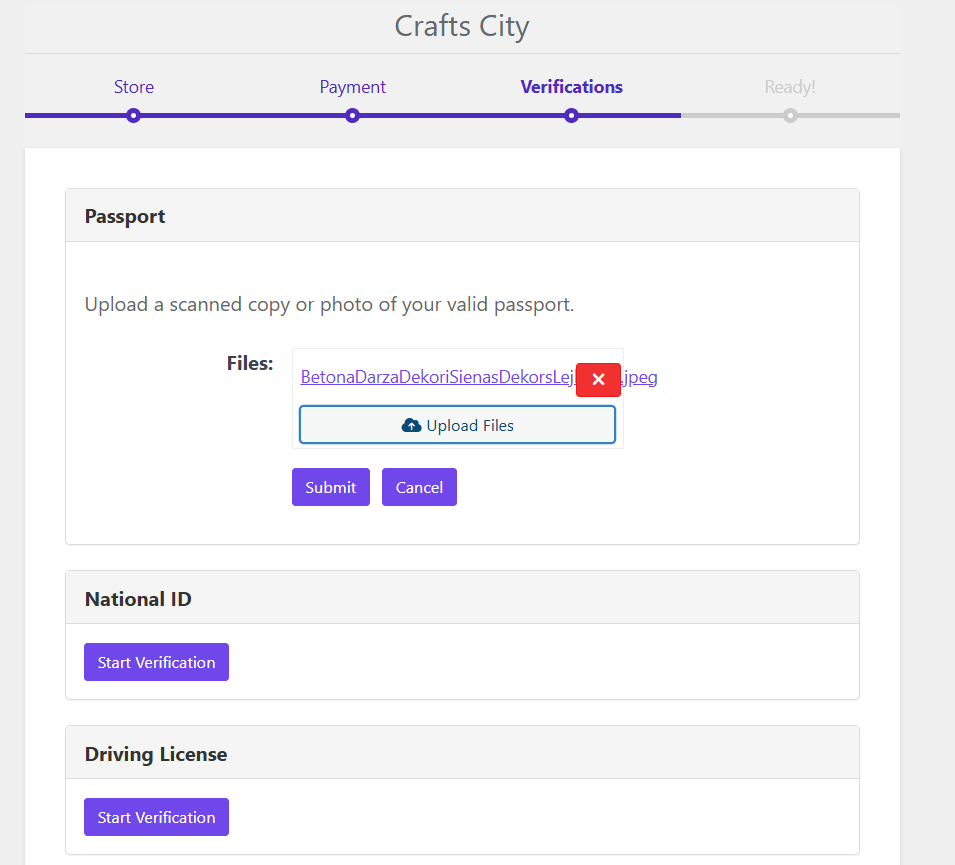
| Next step is Your ID verification. You can verify by uploading one of many documents such as:
Coppy of passport. Coppy of National ID. Coppy of Driving license.
|
 |
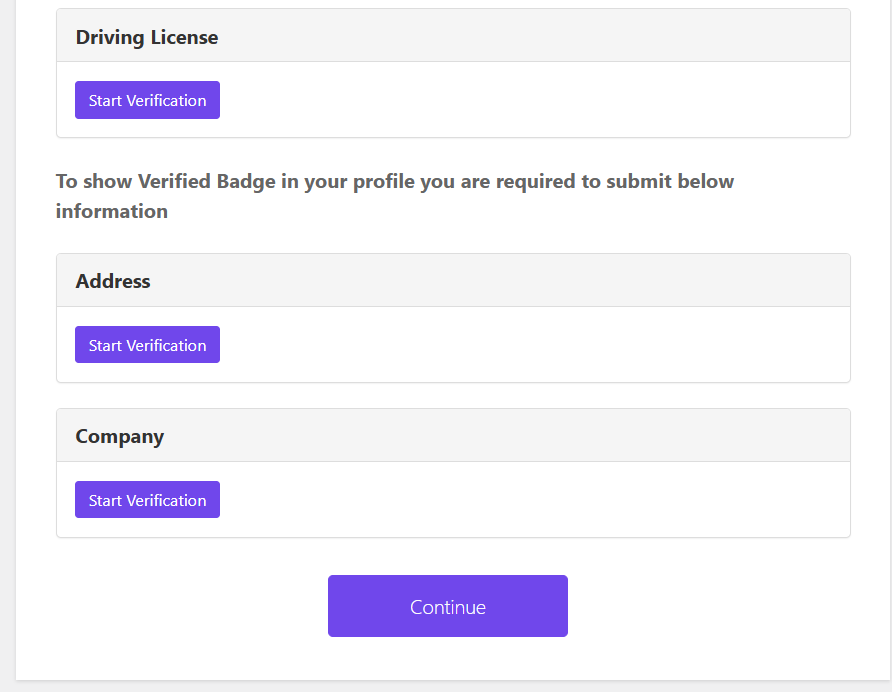
| Address verification documents
Company registration documents |
 |
| You can skip this step or if You uploaded and confirmed by clicking Continue new page will appear – Your store is created. | 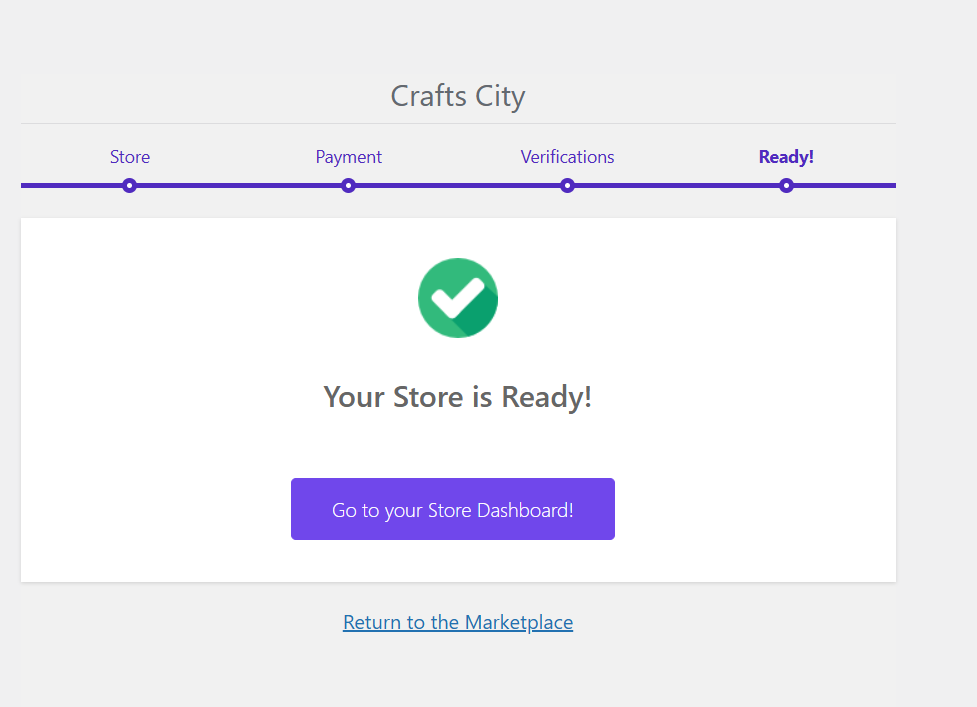 |
| By clicking Go to your store Dashboard You will get to Your new store management area. | 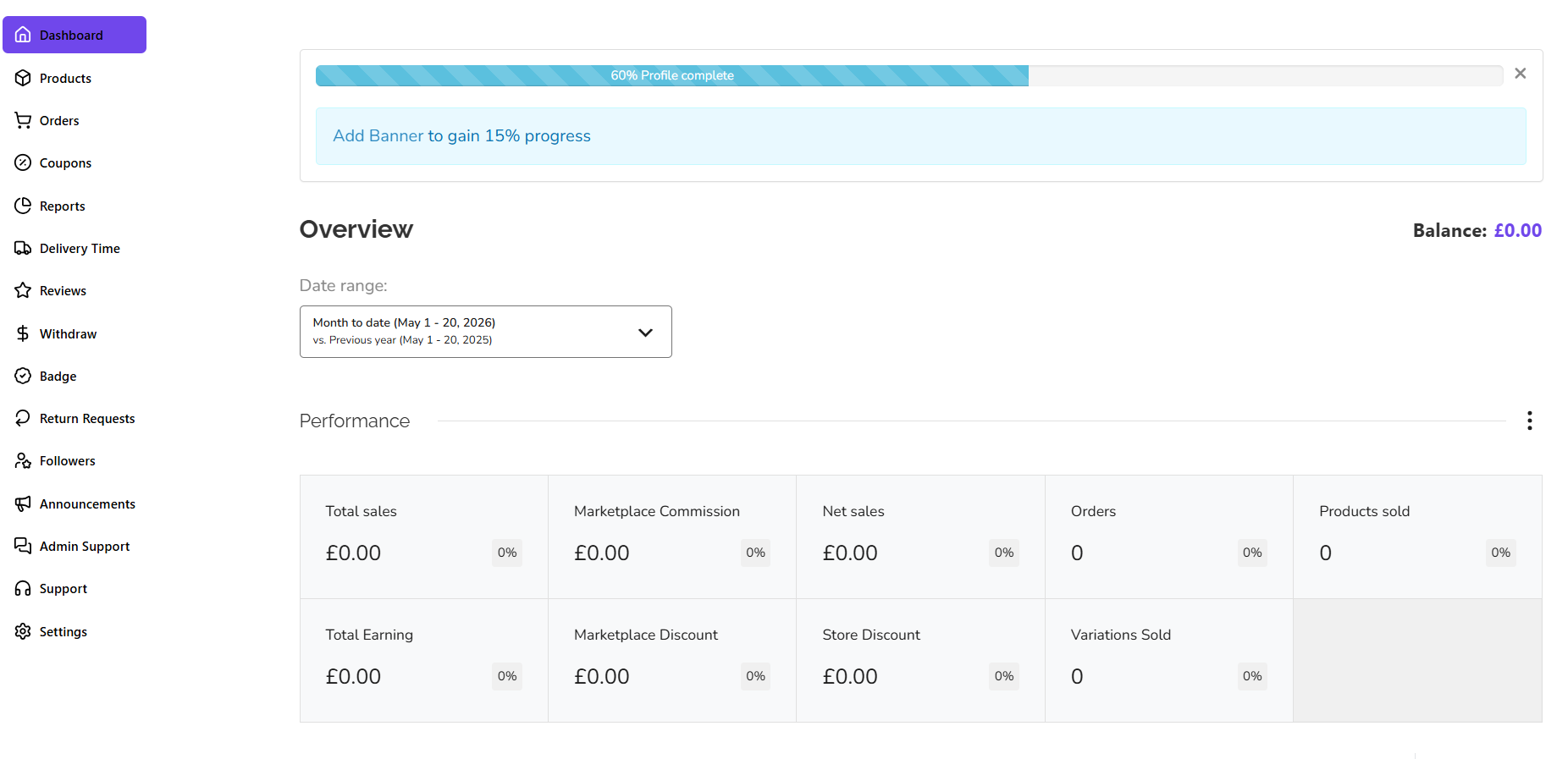 |
